Data Product / Logical Units Groups
On large projects, the Project Tree can become overloaded with dozens of Data Products / Logical Units (LUs), most of which you are not actively working on. Logical Unit Groups let you hide the LUs you don't currently need, while keeping all of the organization's assets in the same source-controlled project. Hidden LUs:
- Do not appear in the Project Tree.
- Are excluded from the Java build (they are not compiled).
- Are excluded from the Deploy all Updated Logical Units command.
Hidden LUs are not simply hidden individually - each one is placed into a group. Groups let you act on many hidden LUs at once (hide/unhide, rename, remove) instead of managing them one by one.
Note: Web Service and Reference LUs cannot be hidden - the Hide Selected Logical Units command is not available for them.
Hiding Logical Units
To hide one or more LUs:
- In the Project Tree, select the LU(s) you want to hide. Use
Ctrl/Cmd + clickto select several LUs at once. - Right-click the selection and choose Hide Selected Logical Units.
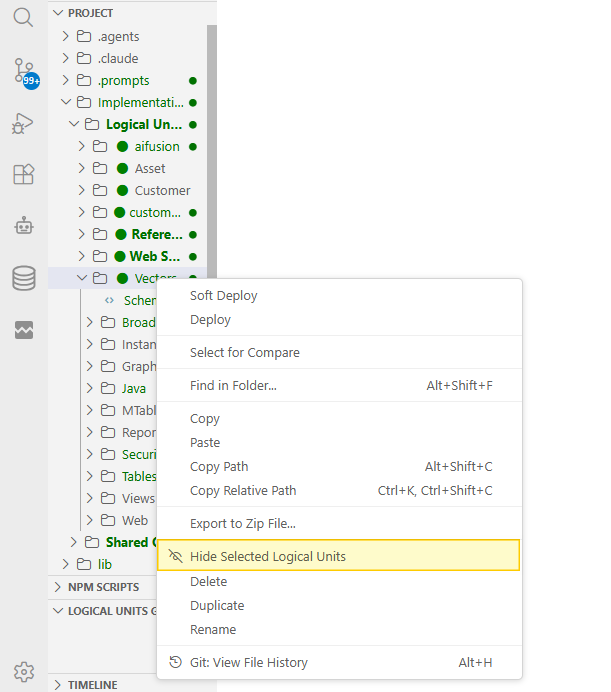
- If this is the first hidden LU in the project, you are prompted to name the new group. The name box is pre-filled with the LU's name, which you can keep or change:

If one or more groups already exist, you are instead asked to Choose a Group - either create a new group or add the selection to an existing one (existing groups show how many LUs they already contain):

- Optionally, enter a description for the group (only shown when creating a new group). This step can be skipped by pressing
Enteron an empty box:

Once hidden, the selected LU(s) disappear from the Project Tree and appear instead under the LOGICAL UNITS GROUPS section, at the bottom of the Explorer side bar.
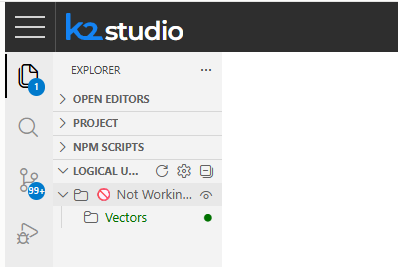
Managing Hidden LU Groups
Expand the LOGICAL UNITS GROUPS section to see all groups and the LUs hidden inside each of them.
Group-Level Actions
Right-click a group to:
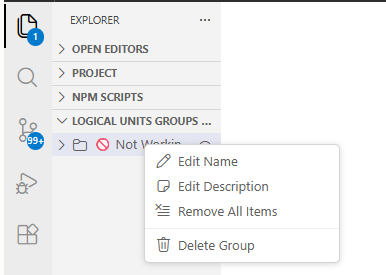
- Edit Name - rename the group.
- Edit Description - change its description.
- Remove All Items - unhide every LU in the group and return them to the Project Tree (the empty group remains).
- Delete Group - delete the group and unhide all of its LUs back into the Project Tree.
LU-Level Actions
Right-click a specific LU inside a group to:
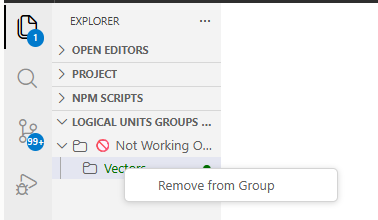
- Remove from Group - unhide that single LU and return it to the Project Tree.
Settings
Two related settings are available under Fabric > LU Groups in the Settings editor:
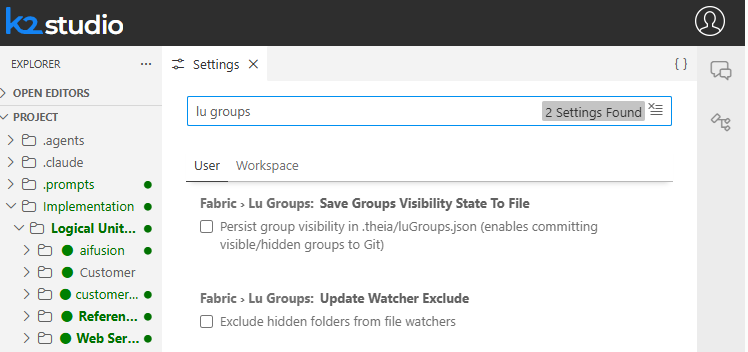
- Save Groups Visibility State To File - when enabled, group visibility is persisted to
.theia/luGroups.json, which can be committed to Git so the whole team shares the same hidden LU groups. When disabled (the default), which LUs are hidden is kept locally, per user. - Update Watcher Exclude - when enabled, hidden LUs are also excluded from the file watcher, in addition to being excluded from the Project Tree, build and deploy. Disabled by default.


Data Product / Logical Units Groups
On large projects, the Project Tree can become overloaded with dozens of Data Products / Logical Units (LUs), most of which you are not actively working on. Logical Unit Groups let you hide the LUs you don't currently need, while keeping all of the organization's assets in the same source-controlled project. Hidden LUs:
- Do not appear in the Project Tree.
- Are excluded from the Java build (they are not compiled).
- Are excluded from the Deploy all Updated Logical Units command.
Hidden LUs are not simply hidden individually - each one is placed into a group. Groups let you act on many hidden LUs at once (hide/unhide, rename, remove) instead of managing them one by one.
Note: Web Service and Reference LUs cannot be hidden - the Hide Selected Logical Units command is not available for them.
Hiding Logical Units
To hide one or more LUs:
- In the Project Tree, select the LU(s) you want to hide. Use
Ctrl/Cmd + clickto select several LUs at once. - Right-click the selection and choose Hide Selected Logical Units.
- If this is the first hidden LU in the project, you are prompted to name the new group. The name box is pre-filled with the LU's name, which you can keep or change:
If one or more groups already exist, you are instead asked to Choose a Group - either create a new group or add the selection to an existing one (existing groups show how many LUs they already contain):
- Optionally, enter a description for the group (only shown when creating a new group). This step can be skipped by pressing
Enteron an empty box:
Once hidden, the selected LU(s) disappear from the Project Tree and appear instead under the LOGICAL UNITS GROUPS section, at the bottom of the Explorer side bar.
Managing Hidden LU Groups
Expand the LOGICAL UNITS GROUPS section to see all groups and the LUs hidden inside each of them.
Group-Level Actions
Right-click a group to:
- Edit Name - rename the group.
- Edit Description - change its description.
- Remove All Items - unhide every LU in the group and return them to the Project Tree (the empty group remains).
- Delete Group - delete the group and unhide all of its LUs back into the Project Tree.
LU-Level Actions
Right-click a specific LU inside a group to:
- Remove from Group - unhide that single LU and return it to the Project Tree.
Settings
Two related settings are available under Fabric > LU Groups in the Settings editor:
- Save Groups Visibility State To File - when enabled, group visibility is persisted to
.theia/luGroups.json, which can be committed to Git so the whole team shares the same hidden LU groups. When disabled (the default), which LUs are hidden is kept locally, per user. - Update Watcher Exclude - when enabled, hidden LUs are also excluded from the file watcher, in addition to being excluded from the Project Tree, build and deploy. Disabled by default.