


Query Builder for NoSQL Interfaces
Overview
The Query Builder now supports NoSQL interfaces in the Web Studio, enabling you to seamlessly query NoSQL data sources alongside traditional SQL databases. This enhancement introduces a dedicated NoSQL mode that replaces the SQL editor with a Broadway flow-based querying system.
Available in Fabric V8.4.
How It Works
NoSQL Mode vs SQL Mode
When you open the Query Builder, it automatically detects the interface type and switches between two modes:
- SQL Mode: Traditional SQL editor for relational databases.
- NoSQL Mode: Broadway flow-based interface for NoSQL databases (MongoDB, Couchbase, etc.).
The mode is dynamically selected based on the chosen interface type, when opening the Query Builder.
Query Execution
In NoSQL mode, queries are executed through a Broadway flow instead of SQL statements. The flow name follows a reserved naming pattern: <interface-type>_query_builder.flow
For example, for MongoDB the flow name is MongoDB_query_builder.flow.
Broadway Flow Requirements
When implementing Query Builder support for a custom NoSQL interface, start from creating your Broadway flow. The flow must follow the mentioned above naming pattern and include the following external parameters:
External Input Parameters
interfaceName- The name of the interface / data platform.schema- The schema name.dataset- The dataset name.limit- Maximum records to return. The flow must implement the limit's default value (e.g. 100).
Additional optional parameters can be included such as: fields, filter or sort.
All external input parameters (except for the interfaceName) will be shown in the Query Builder screen. The interfaceName is hidden since it cannot be updated in the Query Builder screen.
If the Broadway flow has an external input parameter called sql, the Query Builder will be opened in a regular SQL Mode, ignoring any other external inputs except limit.
External Output Parameters
result- The flow results defined as an array of objects.
Using the Query Builder in NoSQL Mode
The Query Builder can be opened:
- Standalone: From the Web Studio's interface explorer, by clicking the Open Query Builder icon next to the interface name.
- As a popup: From other editors (e.g. Schema or Catalog data viewer).
When browsing the interface explorer tree, clicking the Open Query Builder icon next to a dataset opens the Query Builder with schema and dataset pre-populated from the tree.
The Query Builder displays the results based on the result's structure, as follows:
- Tabular view: When the flow returns an array of maps with consistent fields and primitive values, the results are displayed in a table grid (same as SQL mode).
- Monaco editor view: When the flow returns complex nested data or non-tabular results, the results are displayed as raw output with syntax highlighting (JSON, XML, etc.), using Monaco editor panel.
Tips and Best Practices:
- Use the Clear button to reset all query parameters.
- The AI icon is not available in NoSQL mode (this feature is reserved for SQL mode).
- Pay attention to the syntax requirements of your specific NoSQL database when writing filters and sort criteria.
- Use the limit parameter to control result size and improve query performance.
Example: MongoDB Query
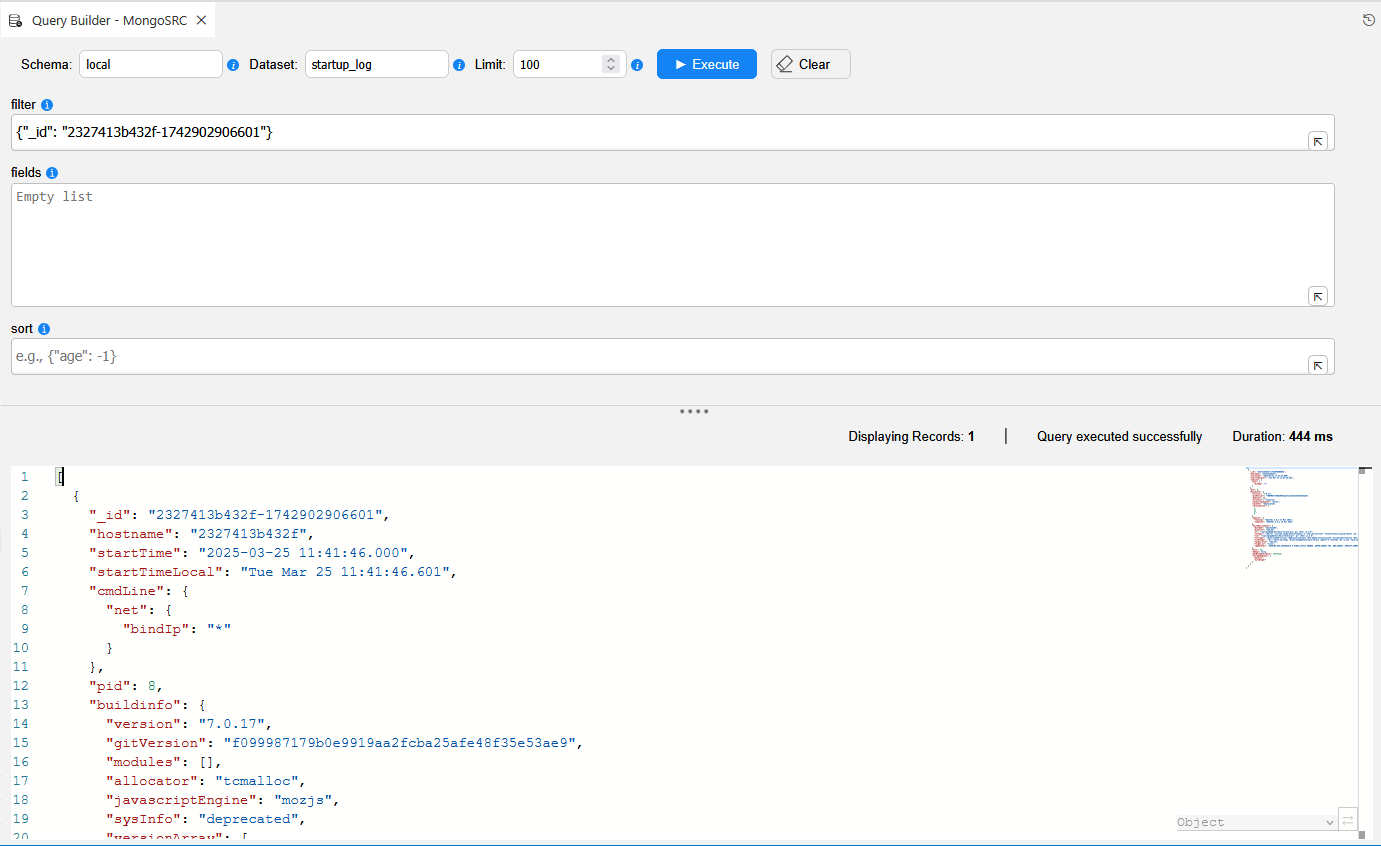
The image below shows a Query Builder session for a MongoDB interface:
Query Parameters:
- Schema: set to
local - Dataset: set to
startup_log - Filter: set to
{"_id": "2327413b432f-1742902906601"} - Limit: set to
100
Result:
A single document displayed in the Monaco editor with JSON syntax highlighting, showing the startup_log entry with fields like _id, hostname, startTime, buildinfo, and nested objects.
Query Builder for NoSQL Interfaces
Overview
The Query Builder now supports NoSQL interfaces in the Web Studio, enabling you to seamlessly query NoSQL data sources alongside traditional SQL databases. This enhancement introduces a dedicated NoSQL mode that replaces the SQL editor with a Broadway flow-based querying system.
Available in Fabric V8.4.
How It Works
NoSQL Mode vs SQL Mode
When you open the Query Builder, it automatically detects the interface type and switches between two modes:
- SQL Mode: Traditional SQL editor for relational databases.
- NoSQL Mode: Broadway flow-based interface for NoSQL databases (MongoDB, Couchbase, etc.).
The mode is dynamically selected based on the chosen interface type, when opening the Query Builder.
Query Execution
In NoSQL mode, queries are executed through a Broadway flow instead of SQL statements. The flow name follows a reserved naming pattern: <interface-type>_query_builder.flow
For example, for MongoDB the flow name is MongoDB_query_builder.flow.
Broadway Flow Requirements
When implementing Query Builder support for a custom NoSQL interface, start from creating your Broadway flow. The flow must follow the mentioned above naming pattern and include the following external parameters:
External Input Parameters
interfaceName- The name of the interface / data platform.schema- The schema name.dataset- The dataset name.limit- Maximum records to return. The flow must implement the limit's default value (e.g. 100).
Additional optional parameters can be included such as: fields, filter or sort.
All external input parameters (except for the interfaceName) will be shown in the Query Builder screen. The interfaceName is hidden since it cannot be updated in the Query Builder screen.
If the Broadway flow has an external input parameter called sql, the Query Builder will be opened in a regular SQL Mode, ignoring any other external inputs except limit.
External Output Parameters
result- The flow results defined as an array of objects.
Using the Query Builder in NoSQL Mode
The Query Builder can be opened:
- Standalone: From the Web Studio's interface explorer, by clicking the Open Query Builder icon next to the interface name.
- As a popup: From other editors (e.g. Schema or Catalog data viewer).
When browsing the interface explorer tree, clicking the Open Query Builder icon next to a dataset opens the Query Builder with schema and dataset pre-populated from the tree.
The Query Builder displays the results based on the result's structure, as follows:
- Tabular view: When the flow returns an array of maps with consistent fields and primitive values, the results are displayed in a table grid (same as SQL mode).
- Monaco editor view: When the flow returns complex nested data or non-tabular results, the results are displayed as raw output with syntax highlighting (JSON, XML, etc.), using Monaco editor panel.
Tips and Best Practices:
- Use the Clear button to reset all query parameters.
- The AI icon is not available in NoSQL mode (this feature is reserved for SQL mode).
- Pay attention to the syntax requirements of your specific NoSQL database when writing filters and sort criteria.
- Use the limit parameter to control result size and improve query performance.
Example: MongoDB Query
The image below shows a Query Builder session for a MongoDB interface:
Query Parameters:
- Schema: set to
local - Dataset: set to
startup_log - Filter: set to
{"_id": "2327413b432f-1742902906601"} - Limit: set to
100
Result:
A single document displayed in the Monaco editor with JSON syntax highlighting, showing the startup_log entry with fields like _id, hostname, startTime, buildinfo, and nested objects.
