Create Your First Space
Overview
After creating a Project and determining the appropriate Space Profile, Fabric Image, and Site, you are ready to create a Space.
A Space is the deployed K2view environment created from:
- a Space name,
- a Project,
- a Space Profile and its selected Fabric Image,
- and a Site.
Conceptually:
Project + Space Profile + Fabric Image + Site → Space
Before You Begin
Confirm that:
- the Project exists,
- the required Space Profile is available for the Project,
- the appropriate Fabric Image is selected for the Space Profile,
- the Site is available,
- and the required Git information has been configured for the Project.
For guidance on these selections, see Selecting a Profile, Fabric Image, and Site.
Create the Space
- Sign in to the K2cloud Orchestrator at:
https://cloud.k2view.com
- Open Spaces.
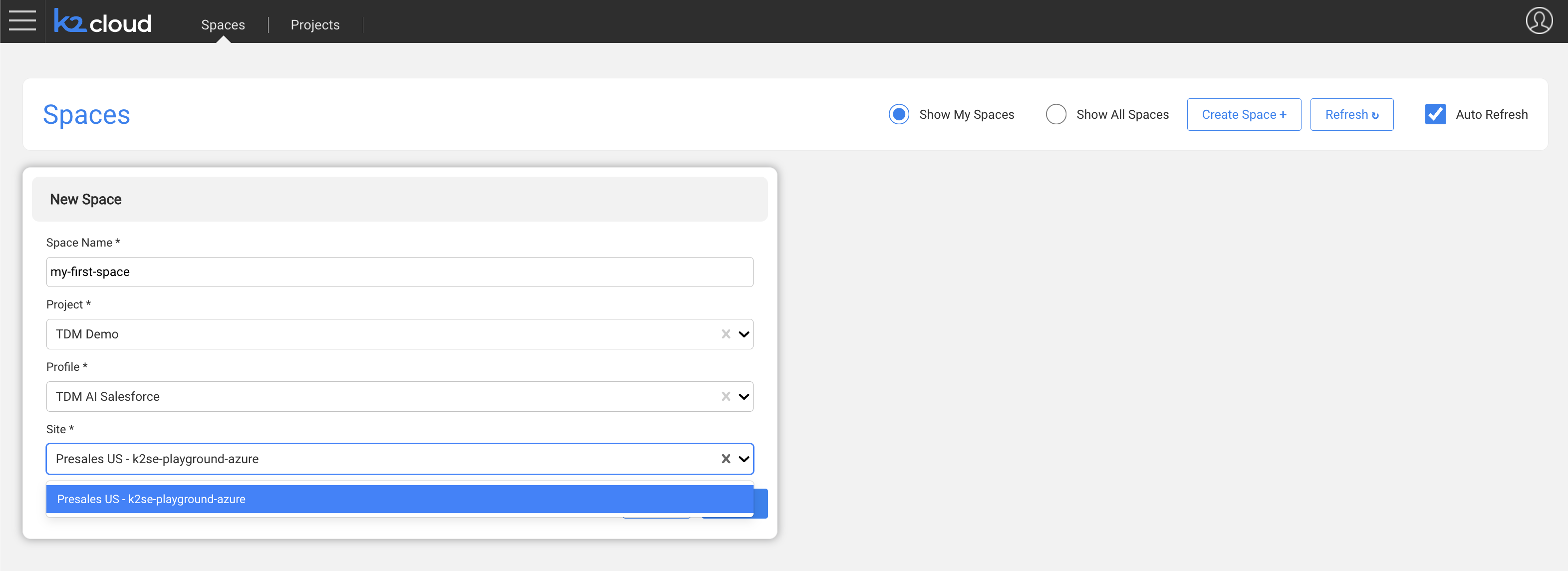
- Select Create Space.
- Enter a name for the Space.
- Select the Project.
- Select the Space Profile.
- Select the Site.
- Review the configuration.
- Select Create.
K2cloud begins provisioning the Space on the selected Site.
Monitor Space Creation
Space creation may take several minutes while K2cloud provisions the services defined by the selected Space Profile.
The Space tile displays the current status while provisioning is in progress.
Wait for Space creation to complete before attempting to open the Space.
After Space Creation
When provisioning completes, the Space appears on the Spaces page in its operational state.
From the Space tile, you can open the Space and obtain its Space URL.
The Space URL is separate from the K2cloud Orchestrator URL. Users who have the appropriate Space-level authorization can use this URL to access the Space directly without requiring the cloud_user role or access to the K2cloud Orchestrator.
Provide the Space URL to developers and other Space users who require direct access.
For more information about Space access and authorization, see Access Fabric Web Studio and Fabric Spaces.
Next Step
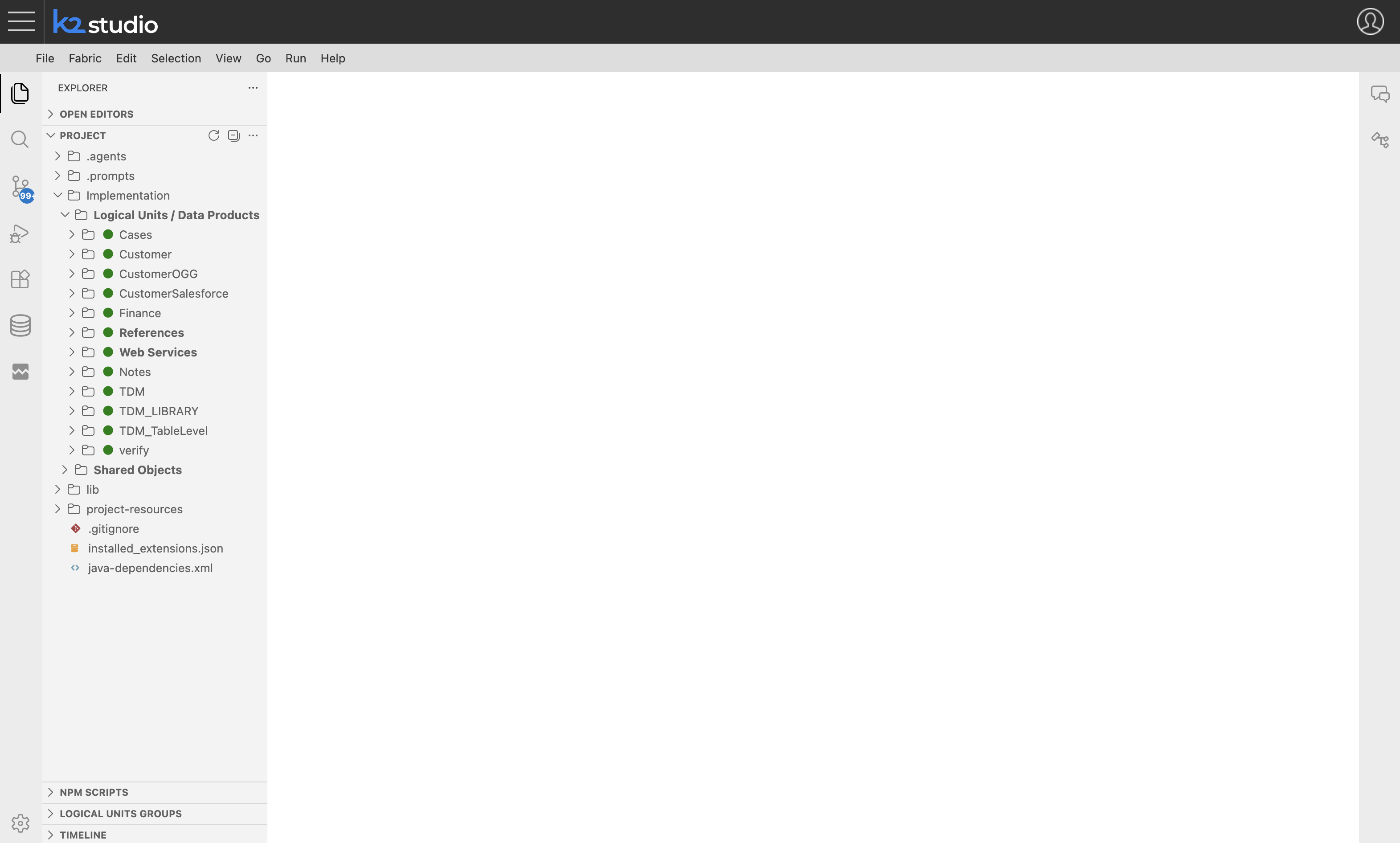
After the Space is operational, open it and verify that the expected applications and services are available.
Create Your First Space
Overview
After creating a Project and determining the appropriate Space Profile, Fabric Image, and Site, you are ready to create a Space.
A Space is the deployed K2view environment created from:
- a Space name,
- a Project,
- a Space Profile and its selected Fabric Image,
- and a Site.
Conceptually:
Project + Space Profile + Fabric Image + Site → Space
Before You Begin
Confirm that:
- the Project exists,
- the required Space Profile is available for the Project,
- the appropriate Fabric Image is selected for the Space Profile,
- the Site is available,
- and the required Git information has been configured for the Project.
For guidance on these selections, see Selecting a Profile, Fabric Image, and Site.
Create the Space
- Sign in to the K2cloud Orchestrator at:
https://cloud.k2view.com
- Open Spaces.
- Select Create Space.
- Enter a name for the Space.
- Select the Project.
- Select the Space Profile.
- Select the Site.
- Review the configuration.
- Select Create.
K2cloud begins provisioning the Space on the selected Site.
Monitor Space Creation
Space creation may take several minutes while K2cloud provisions the services defined by the selected Space Profile.
The Space tile displays the current status while provisioning is in progress.
Wait for Space creation to complete before attempting to open the Space.
After Space Creation
When provisioning completes, the Space appears on the Spaces page in its operational state.
From the Space tile, you can open the Space and obtain its Space URL.
The Space URL is separate from the K2cloud Orchestrator URL. Users who have the appropriate Space-level authorization can use this URL to access the Space directly without requiring the cloud_user role or access to the K2cloud Orchestrator.
Provide the Space URL to developers and other Space users who require direct access.
For more information about Space access and authorization, see Access Fabric Web Studio and Fabric Spaces.
Next Step
After the Space is operational, open it and verify that the expected applications and services are available.