

×
![]()


Fabric 8.4
Verify Interfaces Configuration and Validation
- Configure and validate Verify operational interface:
- In your Cloud Studio, Navigate to Implementation->Shared Objects->Interfaces->JDBC.
- Open
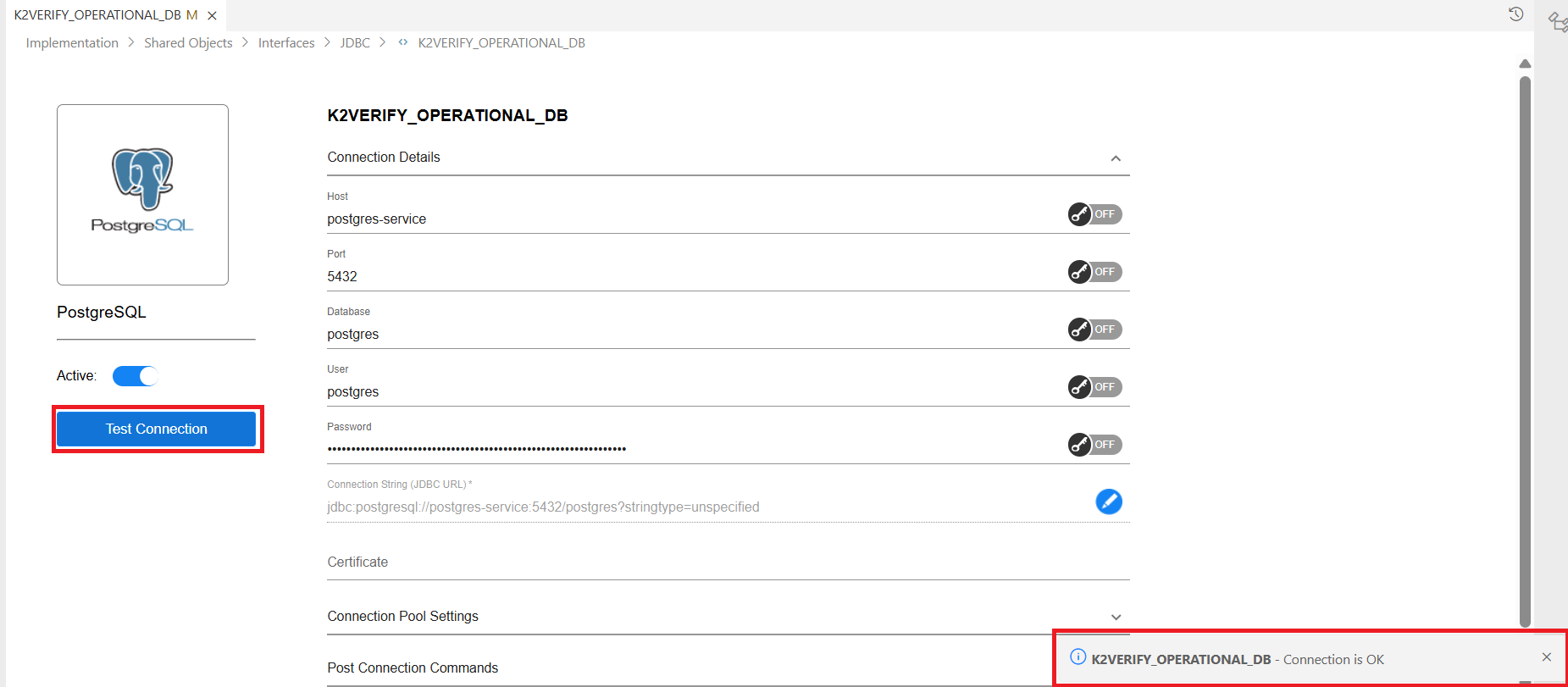
K2VERIFY_OPERATIONAL_DBinterface. - Enter the required connection details for your PostgreSQL operational database:
- Host – PostgreSQL host of your cloud environment.
- Port – PostgreSQL port of your cloud environment.
- Database – Name of the operational database.
- User – Database user credentials.
- Password – Authentication password for the database user.
- Validate interface connectivity by clicking "Test Connection" on the interface to ensure the connection is functioning as expected.
- In case one of the source or target databases is Cassandra, Configure the following custom interfaces
- In your Cloud Studio, Navigate to Implementation->Shared Objects->Interfaces->Other.
- Open
K2VERIFY_SRC_CASS_DETAILSinterface.. - Enter the required connection details for your Cassandra source database:
- Host – Cassandra host of your cloud environment.
- Port – Cassandra port of your cloud environment.
- User – Cassandra user credentials.
- Password – Cassandra authentication password.
- Save the Interface configurations.
- Repeat the same steps for the
K2VERIFY_TAR_CASS_DETAILSinterface to configure the Cassandra target database connection parameters.
Verify Interfaces Configuration and Validation
- Configure and validate Verify operational interface:
- In your Cloud Studio, Navigate to Implementation->Shared Objects->Interfaces->JDBC.
- Open
K2VERIFY_OPERATIONAL_DBinterface. - Enter the required connection details for your PostgreSQL operational database:
- Host – PostgreSQL host of your cloud environment.
- Port – PostgreSQL port of your cloud environment.
- Database – Name of the operational database.
- User – Database user credentials.
- Password – Authentication password for the database user.
- Validate interface connectivity by clicking "Test Connection" on the interface to ensure the connection is functioning as expected.
- In case one of the source or target databases is Cassandra, Configure the following custom interfaces
- In your Cloud Studio, Navigate to Implementation->Shared Objects->Interfaces->Other.
- Open
K2VERIFY_SRC_CASS_DETAILSinterface.. - Enter the required connection details for your Cassandra source database:
- Host – Cassandra host of your cloud environment.
- Port – Cassandra port of your cloud environment.
- User – Cassandra user credentials.
- Password – Cassandra authentication password.
- Save the Interface configurations.
- Repeat the same steps for the
K2VERIFY_TAR_CASS_DETAILSinterface to configure the Cassandra target database connection parameters.

© Copyright 2026 K2VIEW