


File Cataloging
Overview
Fabric Catalog is a tool designed to organize all data assets across a company's data landscape. It facilitates metadata discovery, classification, PII indication and the calculation of various data quality metrics for all entities within a data source.
Sometimes, a company's data assets are stored in files rather than in a database, and this data must be protected in accordance with privacy regulations.
For example, files containing sensitive data arrive periodically to a predefined filesystem interface. Before being used for business purposes, it is essential to identify and mask the contained sensitive data.
Starting from V8.3, Fabric enables running discovery on the following interface types:
- Filesystem (local, Azure, etc.)
- HTTP
- Custom
Discovery can be performed by using either the metadata definition (such as JSON schema or Avro schema files) or sample data.
The Crawler framework, used for file cataloging, employs a generic mechanism that is independent of a specific file format. The Crawler expects to get an input in a predefined format. Since files might have various structures (based on each project's business needs), the File Cataloging solution requires creating Broadway flows and attaching them to an interface. Then, at run-time, these flows are invoked by the Crawler upon running Discovery on the given interface.
These Broadway flows define mapping and transformation rules, converting a specific file format into the Catalog’s standard hierarchy: data platform, schema(s), dataset(s), fields and their properties. The Catalog metadata is built based on either schema definitions or sample files.
Once the Catalog structure is built, the plugins pipeline is executed, in the same manner as running Discovery over any other data source.
More details about the implementation steps can be learned further in this article:
Once the Catalog is created based on files, a process can be defined to receive the files and mask them.
To illustrate the E2E process, the File Cataloging - Demo extension is available, and can be found on the K2exchange's list of the extensions. This extension can be installed into your project, and it offers several comprehensive examples of file cataloging. For the full list of supported formats and version compatibility details, refer to the extension's README file.
Creating Transformation Flows
Due to the existence of multiple file formats, applying transformation is required for performing the file cataloging process. Transformation flows are created using Broadway flows that should be placed in the Project tree (under the Shared Objects) and deployed.
To better understand the concept of a transformation flow and its pivotal use in the file cataloging solution, below is a description of each expected flow:
Get Metadata is the first transformation flow, and it builds the Catalog's expected metadata, returning it in a format of an array of maps. This flow is mandatory.
- Metadata may be based on the schema definition file(s), if they are provided. Dedicated actors are provided for this use case:
- JsonSchemaToMetadata to transform the JSON schema to the Catalog metadata format. The actor's capabilities vary by Fabric version as new capabilities were added in V8.3.1 and then later in V8.4.5. Refer to the extension's README for version compatibility details and flow examples.
- AvroSchemaToMetadata to transform the Avro schema to the Catalog metadata format (Avro extension should be installed to use this actor).
- OpenApiToMetadata to transform an OpenAPI specification (versions 3.0 and 3.1) to the Catalog metadata format. Available from V8.5. For more details, refer to OpenAPI Support.
- When no schema definition file exists, the metadata is expected to be discovered from a data sample. In this case, the output Catalog metadata will only include the dataset name with its corresponding schema. The fields and their properties will then be inferred from the sample data.
- A combined approach is also possible, where some datasets are defined using schema definition files, while others are based on sample data.
Get Files List is the second transformation flow, and it returns a mapping between each dataset and its corresponding sample files. This flow is optional and only required when sample files are provided.
- The flow should return a list of relevant data sample files (including the file's full path) per each dataset. Several sample files can be provided for the same dataset. However, one sample file cannot include data for more than one dataset.
Get File Data is the third transformation flow, and it returns the sample file's data. This flow is optional and only required when sample files are provided. If Get Files List is defined, this flow should be defined as well.
- For each file, the flow should return a result set that represents one dataset row.
When creating your own flows, it is recommended to start from the sample flows provided in the File Cataloging - Demo extension and customize them to fit your needs. Keep in mind to maintain the flow's external input and output parameters as defined in the example flows that appear in the demo.
Attaching Flows to Interfaces
The following interface types include a group of input parameters called Discovery.
- Filesystem (local, Azure, etc.)
- HTTP
- Custom
The purpose of these input parameters is attach the relevant transformation flows as explained in the above paragraph.
Do the following steps to attach the transformation flows:
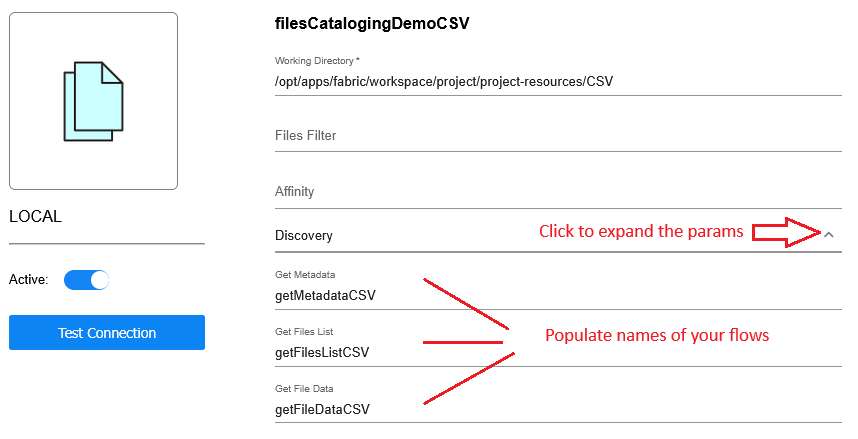
- Create an interface or open an existing interface.
- Click the arrow icon to expand the parameters of the Discovery category (as shown in the image).
- Populate the names of the Broadway flows.
- Save and deploy the Web Services LU.
Organizing Files in Filesystem
There is no system limitation on how to organize the files in the filesystem interface. The only rule is that the file setup should correspond to the flow's logic.
The File Cataloging - Demo extension demonstrates various ways to organize files.
In the cataloging example for CSV files, all CSV files are placed in a single folder, assuming each file represents a dataset. The schema name is set to main in the corresponding Get Metadata flow.
In the examples of JSON and XML files, a folder hierarchy is created: the main folder represents the schema, while the contact and customer folders represent datasets, each containing its relevant sample data files.
Note that the masked and masked_main folders are included for illustration purposes only, to show the structure of the masking results folders.
To sum up, files should be organized into folders according to a structure that aligns with the flow’s logic and meets your project's requirements. Multiple valid ways can be used for organizing files and setting up the folders, as long as they support the file cataloging solution upon its layout.
File Cataloging
Overview
Fabric Catalog is a tool designed to organize all data assets across a company's data landscape. It facilitates metadata discovery, classification, PII indication and the calculation of various data quality metrics for all entities within a data source.
Sometimes, a company's data assets are stored in files rather than in a database, and this data must be protected in accordance with privacy regulations.
For example, files containing sensitive data arrive periodically to a predefined filesystem interface. Before being used for business purposes, it is essential to identify and mask the contained sensitive data.
Starting from V8.3, Fabric enables running discovery on the following interface types:
- Filesystem (local, Azure, etc.)
- HTTP
- Custom
Discovery can be performed by using either the metadata definition (such as JSON schema or Avro schema files) or sample data.
The Crawler framework, used for file cataloging, employs a generic mechanism that is independent of a specific file format. The Crawler expects to get an input in a predefined format. Since files might have various structures (based on each project's business needs), the File Cataloging solution requires creating Broadway flows and attaching them to an interface. Then, at run-time, these flows are invoked by the Crawler upon running Discovery on the given interface.
These Broadway flows define mapping and transformation rules, converting a specific file format into the Catalog’s standard hierarchy: data platform, schema(s), dataset(s), fields and their properties. The Catalog metadata is built based on either schema definitions or sample files.
Once the Catalog structure is built, the plugins pipeline is executed, in the same manner as running Discovery over any other data source.
More details about the implementation steps can be learned further in this article:
Once the Catalog is created based on files, a process can be defined to receive the files and mask them.
To illustrate the E2E process, the File Cataloging - Demo extension is available, and can be found on the K2exchange's list of the extensions. This extension can be installed into your project, and it offers several comprehensive examples of file cataloging. For the full list of supported formats and version compatibility details, refer to the extension's README file.
Creating Transformation Flows
Due to the existence of multiple file formats, applying transformation is required for performing the file cataloging process. Transformation flows are created using Broadway flows that should be placed in the Project tree (under the Shared Objects) and deployed.
To better understand the concept of a transformation flow and its pivotal use in the file cataloging solution, below is a description of each expected flow:
Get Metadata is the first transformation flow, and it builds the Catalog's expected metadata, returning it in a format of an array of maps. This flow is mandatory.
- Metadata may be based on the schema definition file(s), if they are provided. Dedicated actors are provided for this use case:
- JsonSchemaToMetadata to transform the JSON schema to the Catalog metadata format. The actor's capabilities vary by Fabric version as new capabilities were added in V8.3.1 and then later in V8.4.5. Refer to the extension's README for version compatibility details and flow examples.
- AvroSchemaToMetadata to transform the Avro schema to the Catalog metadata format (Avro extension should be installed to use this actor).
- OpenApiToMetadata to transform an OpenAPI specification (versions 3.0 and 3.1) to the Catalog metadata format. Available from V8.5. For more details, refer to OpenAPI Support.
- When no schema definition file exists, the metadata is expected to be discovered from a data sample. In this case, the output Catalog metadata will only include the dataset name with its corresponding schema. The fields and their properties will then be inferred from the sample data.
- A combined approach is also possible, where some datasets are defined using schema definition files, while others are based on sample data.
Get Files List is the second transformation flow, and it returns a mapping between each dataset and its corresponding sample files. This flow is optional and only required when sample files are provided.
- The flow should return a list of relevant data sample files (including the file's full path) per each dataset. Several sample files can be provided for the same dataset. However, one sample file cannot include data for more than one dataset.
Get File Data is the third transformation flow, and it returns the sample file's data. This flow is optional and only required when sample files are provided. If Get Files List is defined, this flow should be defined as well.
- For each file, the flow should return a result set that represents one dataset row.
When creating your own flows, it is recommended to start from the sample flows provided in the File Cataloging - Demo extension and customize them to fit your needs. Keep in mind to maintain the flow's external input and output parameters as defined in the example flows that appear in the demo.
Attaching Flows to Interfaces
The following interface types include a group of input parameters called Discovery.
- Filesystem (local, Azure, etc.)
- HTTP
- Custom
The purpose of these input parameters is attach the relevant transformation flows as explained in the above paragraph.
Do the following steps to attach the transformation flows:
- Create an interface or open an existing interface.
- Click the arrow icon to expand the parameters of the Discovery category (as shown in the image).
- Populate the names of the Broadway flows.
- Save and deploy the Web Services LU.
Organizing Files in Filesystem
There is no system limitation on how to organize the files in the filesystem interface. The only rule is that the file setup should correspond to the flow's logic.
The File Cataloging - Demo extension demonstrates various ways to organize files.
In the cataloging example for CSV files, all CSV files are placed in a single folder, assuming each file represents a dataset. The schema name is set to main in the corresponding Get Metadata flow.
In the examples of JSON and XML files, a folder hierarchy is created: the main folder represents the schema, while the contact and customer folders represent datasets, each containing its relevant sample data files.
Note that the masked and masked_main folders are included for illustration purposes only, to show the structure of the masking results folders.
To sum up, files should be organized into folders according to a structure that aligns with the flow’s logic and meets your project's requirements. Multiple valid ways can be used for organizing files and setting up the folders, as long as they support the file cataloging solution upon its layout.
