


TDM Task Components
Task Actions
The following task actions are supported by TDM:
- Extract - extracts the selected entities and/or tables from the selected source environment. The data can be saved in the Test Data Store (Fabric) for a later use.
- Generate - generates synthetic entities. Either one of the entities' generation methods can be applied: Rule-based data generation or AI-based data generation.
- Load - provisions the selected entities and/or tables to the selected target environment. The target environment can be AI training to run AI-based training on a subset of entities.
- Delete - deletes the selected entities from the target environment.
- Reserve - reserves the selected entities in the target environment.
Task Architectural Widget
TDM redesigns the task creation flow in order to simplify the task creation or edit and make it more intuitive. A graphic architectural widget guides the user on the task's related components:
Source – defines the data source of task's entities and/or tables. The data source can be either a source environment or a synthetic data generation.
Subset – defines the entities' subset or the tables' filter. For example, select 50 customers that live in NY and have a Gold status.
Test Data Store – this is Fabric that can be used as a staging DB to save the task's entities and/or tables.
Target – defines the target environment for the task. It can be either a testing environment or AI training to create a training model for generating AI-based synthetic entities.
The task actions are set by the components that are selected and set by the user. The Test Data Store must be set for all tasks.
Examples:
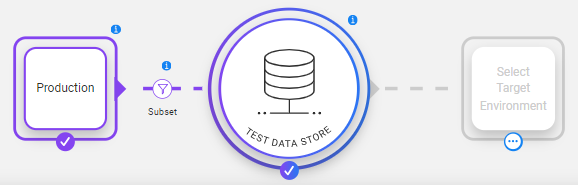
The user wishes to extract entities from Production and save them in the Test Data Store (Fabric) for a later use. The user needs to select the Source component:
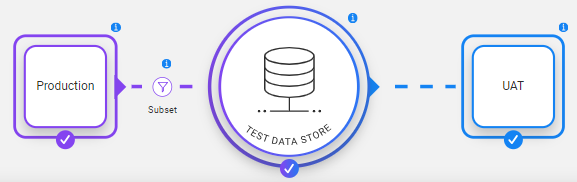
The user wishes to extract entities from Production and load them into the UAT environment. The user needs to select both the Source and the Target components:
The user can click on each one of the components to open its form and update its settings. The task also has Save task, Save & open execution and Advanced settings icons.
Task Components
Task Name
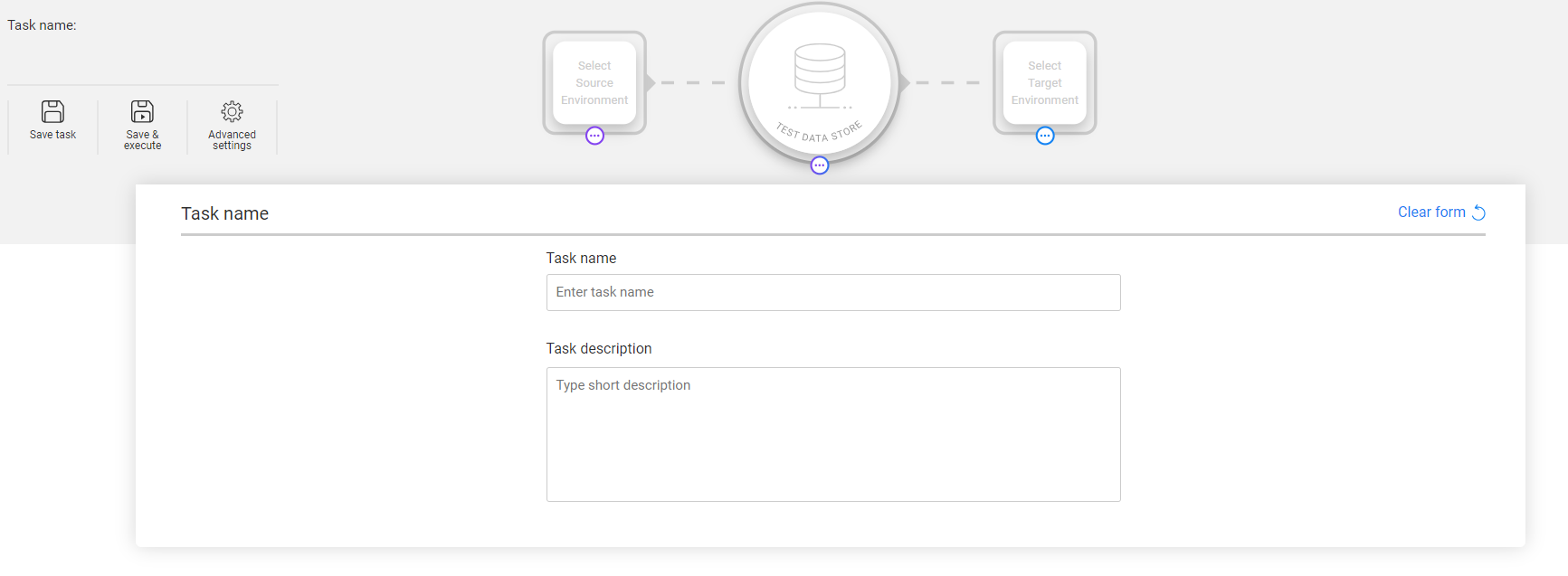
When you create a new task or open an existing one, the Task name form opens. Completing the Task name and Task description fields is optional. If you do not specify a task name, a default name is generated based on basic task information.
You can close the Task name form (or any other form) by clicking any task component. To reopen it, click the task name in the upper-left corner of the window.
The Task name form includes the task name, description, task group, task access control, and notes.
Task Architectural Widget
Each task must include the Test Data Store (Fabric) and at least one environment: Source or Target. A task can include Source only, Target only, or both environments.
Click on each one of the components to open and update its form.
Advanced Settings
The Advanced settings icon opens a pop-up window that includes optional task settings containing pre and post execution processes, task variables, task scheduling, and execution report settings.
Click here for more information about the task advanced setting window.
Save or Save & Open Execution
The Save task icon saves the task in the TDM DB.
The Save & open execution icon saves the task in the TDM DB and opens the task execution window to execute the task.
Task Lock Icons
Task fields that support runtime override at task execution time have a lock icon next to their label. By default, these fields are locked — the task creator can click the lock icon to unlock a field and allow the task runner to set or override its value at execution time. See the full list of attributes available for runtime override.


TDM Task Components
Task Actions
The following task actions are supported by TDM:
- Extract - extracts the selected entities and/or tables from the selected source environment. The data can be saved in the Test Data Store (Fabric) for a later use.
- Generate - generates synthetic entities. Either one of the entities' generation methods can be applied: Rule-based data generation or AI-based data generation.
- Load - provisions the selected entities and/or tables to the selected target environment. The target environment can be AI training to run AI-based training on a subset of entities.
- Delete - deletes the selected entities from the target environment.
- Reserve - reserves the selected entities in the target environment.
Task Architectural Widget
TDM redesigns the task creation flow in order to simplify the task creation or edit and make it more intuitive. A graphic architectural widget guides the user on the task's related components:
Source – defines the data source of task's entities and/or tables. The data source can be either a source environment or a synthetic data generation.
Subset – defines the entities' subset or the tables' filter. For example, select 50 customers that live in NY and have a Gold status.
Test Data Store – this is Fabric that can be used as a staging DB to save the task's entities and/or tables.
Target – defines the target environment for the task. It can be either a testing environment or AI training to create a training model for generating AI-based synthetic entities.
The task actions are set by the components that are selected and set by the user. The Test Data Store must be set for all tasks.
Examples:
The user wishes to extract entities from Production and save them in the Test Data Store (Fabric) for a later use. The user needs to select the Source component:
The user wishes to extract entities from Production and load them into the UAT environment. The user needs to select both the Source and the Target components:
The user can click on each one of the components to open its form and update its settings. The task also has Save task, Save & open execution and Advanced settings icons.
Task Components
Task Name
When you create a new task or open an existing one, the Task name form opens. Completing the Task name and Task description fields is optional. If you do not specify a task name, a default name is generated based on basic task information.
You can close the Task name form (or any other form) by clicking any task component. To reopen it, click the task name in the upper-left corner of the window.
The Task name form includes the task name, description, task group, task access control, and notes.
Task Architectural Widget
Each task must include the Test Data Store (Fabric) and at least one environment: Source or Target. A task can include Source only, Target only, or both environments.
Click on each one of the components to open and update its form.
Advanced Settings
The Advanced settings icon opens a pop-up window that includes optional task settings containing pre and post execution processes, task variables, task scheduling, and execution report settings.
Click here for more information about the task advanced setting window.
Save or Save & Open Execution
The Save task icon saves the task in the TDM DB.
The Save & open execution icon saves the task in the TDM DB and opens the task execution window to execute the task.
Task Lock Icons
Task fields that support runtime override at task execution time have a lock icon next to their label. By default, these fields are locked — the task creator can click the lock icon to unlock a field and allow the task runner to set or override its value at execution time. See the full list of attributes available for runtime override.
