


Task Management Window
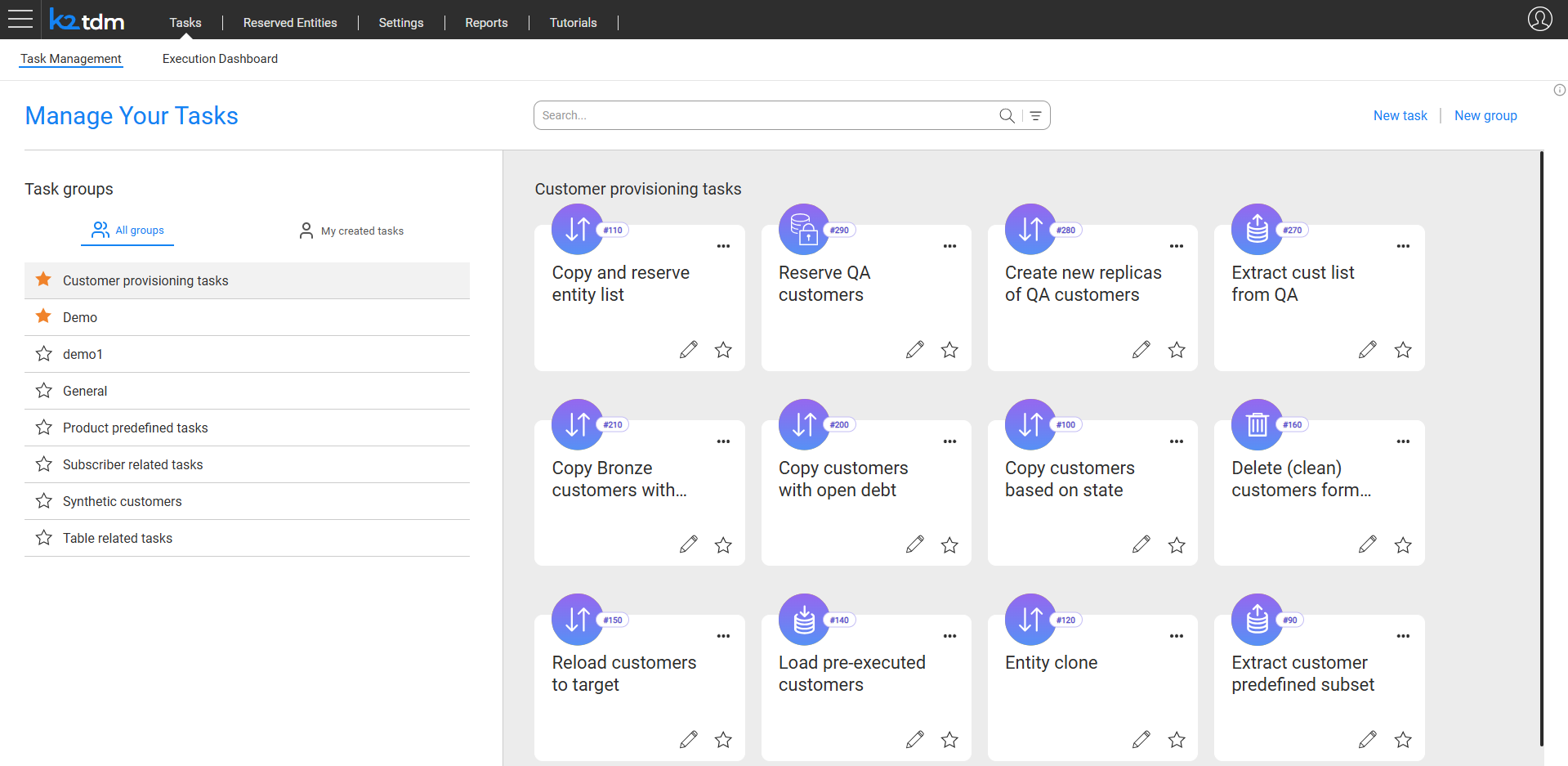
The Task Management window is the home page of the TDM App. It is the central hub for browsing, organizing, and acting on TDM tasks. The window opens when the user clicks Tasks in the top navigation bar and selects the Task Management tab.
All TDM users — Admin, Owner, and Tester — can access the Task Management window. The tasks displayed depend on the user's permission group and the execution permissions set by each task's creator.
Window Layout
The Task Management window is divided into two panels:
- Left panel — Task Groups: Lists all available task groups. Users can toggle between All groups and My created tasks to filter the view.
- Right panel — Task Cards: Displays the tasks that belong to the selected group, presented as cards in a grid layout.
The header bar provides a Search field, and the top-right corner provides the New task and New group actions.
Task Groups
Tasks are organized into logical groups by domain, team, or use case. Grouping helps task runners find the right task quickly without navigating a flat list.
The left panel displays all available task groups. Click a group name to filter the right panel to show only the tasks in that group. Select All groups to show tasks across all groups the user has access to, or My created tasks to show only tasks created by the logged-in user.
Groups marked with a star (★) are pinned to the top of the list as favorites.
Product Predefined Tasks
The Product predefined tasks group contains a set of built-in tasks provided out of the box, covering the standard TDM actions: Extract entities, Extract and Load entities, Load entities, Clone entities, Generate entities, Generate and load entities, Reserve entities, and Delete entities.
These generic tasks are created with an empty Business Entity (BE) and environments. They can be executed as-is when the task runner populates the required information in the task execution window, or edited by a TDM Admin user to better fit the organization's business needs.
Creating a New Group
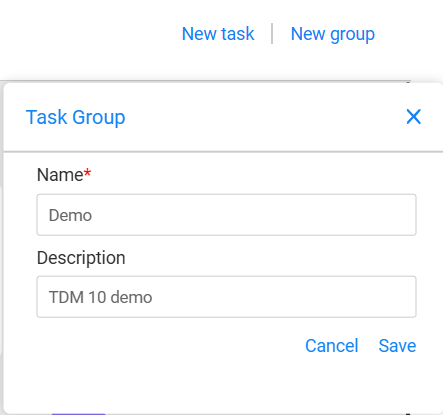
Click New group in the top-right corner of the window. A Task Group dialog opens, where you can enter a group Name (required) and an optional Description. Click Save to create the group.
Managing Groups
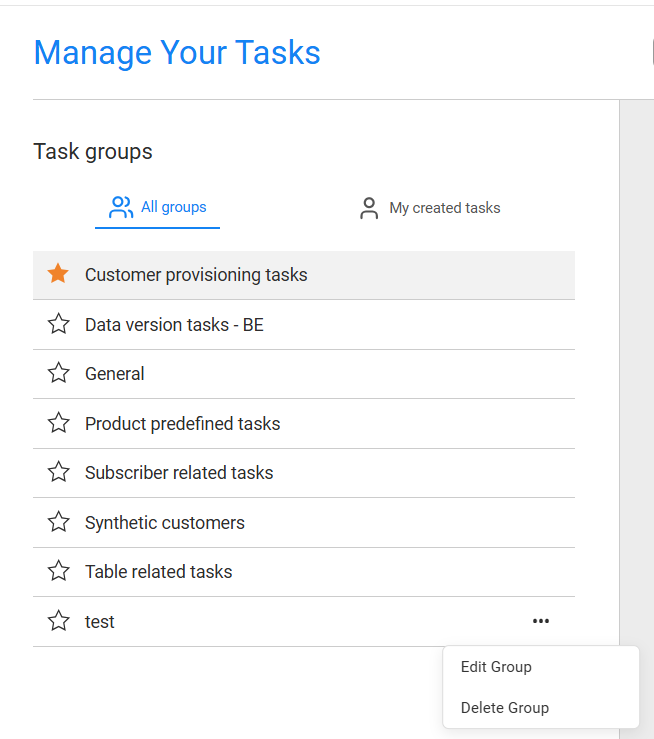
Hovering over a group name in the left panel reveals a ⋯ menu with the following options:
- Edit Group — update the group name or description.
- Delete Group — remove the group. Tasks assigned to the group are not deleted.
Task Cards
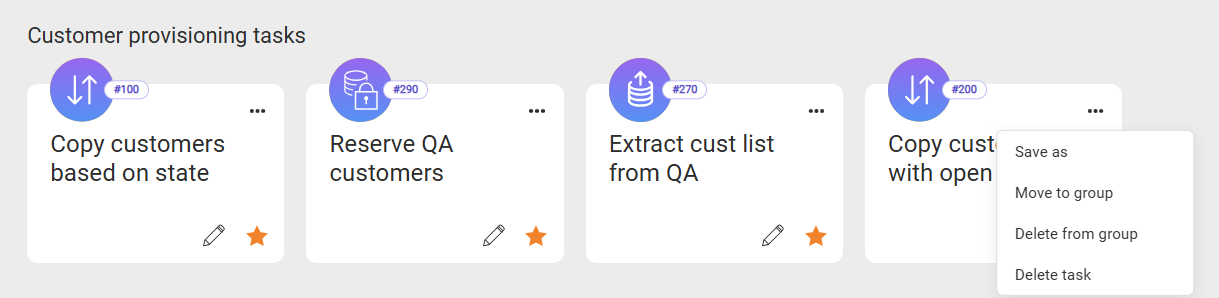
Each task is displayed as a card in the right panel. The card shows the task name and a task-type icon with the task ID number. Click the task card to open it for execution.
The following actions are available on each card:
- Edit (pencil icon) / View (eye icon) — opens the task for editing or view. The edit icon is displayed if the user has permission to edit the task (the task creator or an admin user). Users without edit permission can open the task for view by clicking the eye icon.
- Favorite (star icon) — marks the task as a favorite. Favorited tasks are pinned to the top of their group.
- ⋯ menu — opens additional options:
- Save as — creates a copy of the task as a new task. Available to every user who has permission to create a task.
- Move to group — moves the task to a different group or adds it to an additional group. Available to the task creator or an admin user.
- Delete from group — removes the task from the current group without deleting it. Available to the task creator or an admin user.
- Delete task — permanently deletes the task. Available to the task creator or an admin user.
A task card can also be dragged from one group to another directly in the left panel, as an alternative to using the Move to group option.
Search and Filtering
The Search bar at the top of the window supports both quick text search and structured filtering.
- Keyword search — type any keyword to filter tasks by name.
- Advanced filters — click the filter icon (≡) next to the search field to open the advanced filter panel.
Advanced Filter Panel
The advanced filter panel provides the following filter fields:
Click Search to apply the selected filters. Click ✕ in the search bar to clear active filters and return to the full task list.
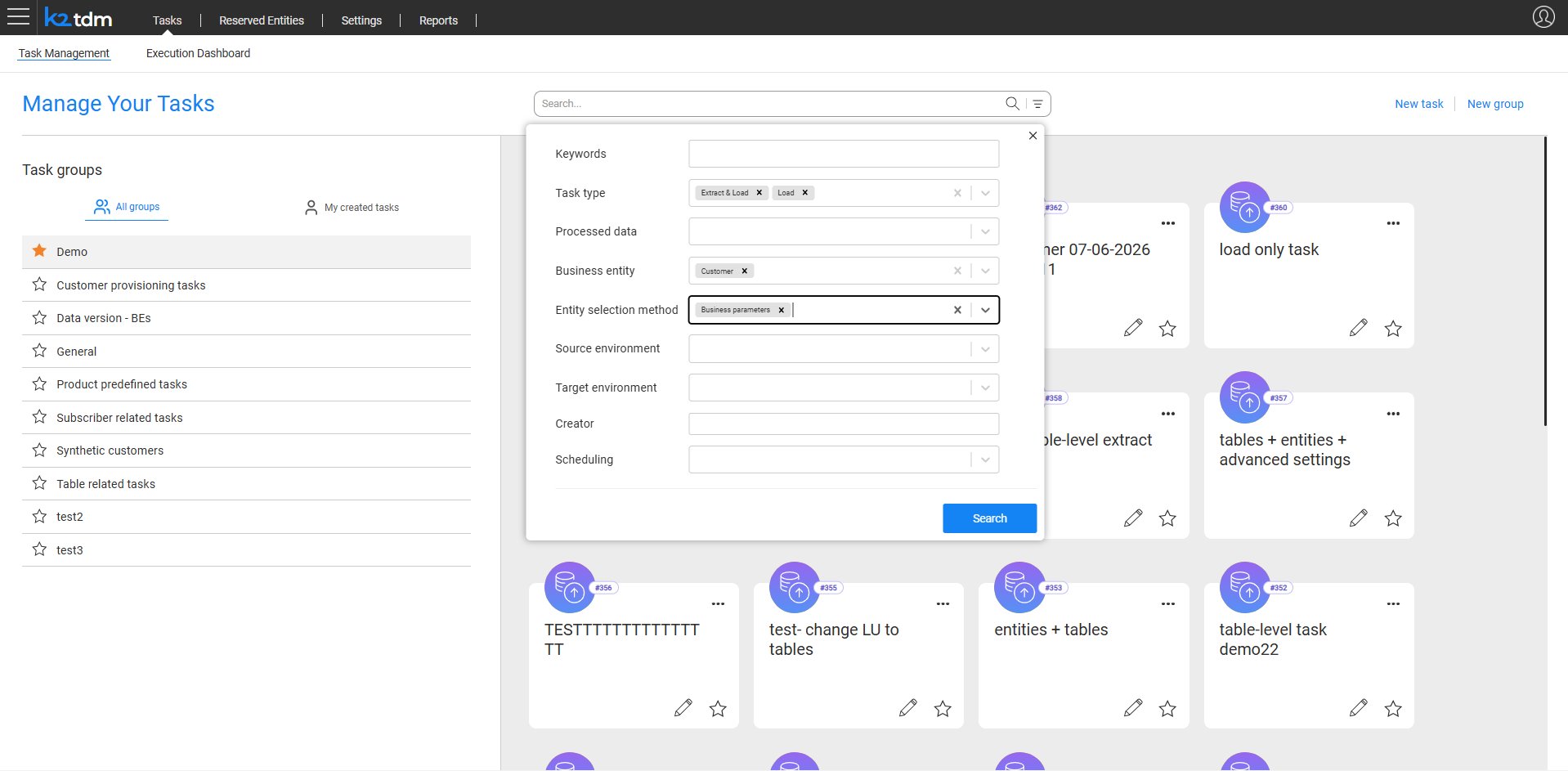
The search returns matching tasks across all task groups.
AI Helper – AI-Assisted Task Search
The TDM Agent is available in the TDM App. It makes it easier to find and prepare TDM tasks using natural language. Instead of browsing or filtering through the task list and then manually provision them, testers can simply describe what they want to do. The TDM Agent identifies the most appropriate task, opens it, and pre-fills its editable execution attributes based on the user's request. When needed and allowed, it also adds new attributes. The tester can then review the suggested values, make any necessary changes, and execute the task.
Click here for more information about the TDM agent.
Creating a New Task
Click New task in the top-right corner of the window to open the task creation flow. See Task Components for details on creating and configuring tasks.


Task Management Window
The Task Management window is the home page of the TDM App. It is the central hub for browsing, organizing, and acting on TDM tasks. The window opens when the user clicks Tasks in the top navigation bar and selects the Task Management tab.
All TDM users — Admin, Owner, and Tester — can access the Task Management window. The tasks displayed depend on the user's permission group and the execution permissions set by each task's creator.
Window Layout
The Task Management window is divided into two panels:
- Left panel — Task Groups: Lists all available task groups. Users can toggle between All groups and My created tasks to filter the view.
- Right panel — Task Cards: Displays the tasks that belong to the selected group, presented as cards in a grid layout.
The header bar provides a Search field, and the top-right corner provides the New task and New group actions.
Task Groups
Tasks are organized into logical groups by domain, team, or use case. Grouping helps task runners find the right task quickly without navigating a flat list.
The left panel displays all available task groups. Click a group name to filter the right panel to show only the tasks in that group. Select All groups to show tasks across all groups the user has access to, or My created tasks to show only tasks created by the logged-in user.
Groups marked with a star (★) are pinned to the top of the list as favorites.
Product Predefined Tasks
The Product predefined tasks group contains a set of built-in tasks provided out of the box, covering the standard TDM actions: Extract entities, Extract and Load entities, Load entities, Clone entities, Generate entities, Generate and load entities, Reserve entities, and Delete entities.
These generic tasks are created with an empty Business Entity (BE) and environments. They can be executed as-is when the task runner populates the required information in the task execution window, or edited by a TDM Admin user to better fit the organization's business needs.
Creating a New Group
Click New group in the top-right corner of the window. A Task Group dialog opens, where you can enter a group Name (required) and an optional Description. Click Save to create the group.
Managing Groups
Hovering over a group name in the left panel reveals a ⋯ menu with the following options:
- Edit Group — update the group name or description.
- Delete Group — remove the group. Tasks assigned to the group are not deleted.
Task Cards
Each task is displayed as a card in the right panel. The card shows the task name and a task-type icon with the task ID number. Click the task card to open it for execution.
The following actions are available on each card:
- Edit (pencil icon) / View (eye icon) — opens the task for editing or view. The edit icon is displayed if the user has permission to edit the task (the task creator or an admin user). Users without edit permission can open the task for view by clicking the eye icon.
- Favorite (star icon) — marks the task as a favorite. Favorited tasks are pinned to the top of their group.
- ⋯ menu — opens additional options:
- Save as — creates a copy of the task as a new task. Available to every user who has permission to create a task.
- Move to group — moves the task to a different group or adds it to an additional group. Available to the task creator or an admin user.
- Delete from group — removes the task from the current group without deleting it. Available to the task creator or an admin user.
- Delete task — permanently deletes the task. Available to the task creator or an admin user.
A task card can also be dragged from one group to another directly in the left panel, as an alternative to using the Move to group option.
Search and Filtering
The Search bar at the top of the window supports both quick text search and structured filtering.
- Keyword search — type any keyword to filter tasks by name.
- Advanced filters — click the filter icon (≡) next to the search field to open the advanced filter panel.
Advanced Filter Panel
The advanced filter panel provides the following filter fields:
Click Search to apply the selected filters. Click ✕ in the search bar to clear active filters and return to the full task list.
The search returns matching tasks across all task groups.
AI Helper – AI-Assisted Task Search
The TDM Agent is available in the TDM App. It makes it easier to find and prepare TDM tasks using natural language. Instead of browsing or filtering through the task list and then manually provision them, testers can simply describe what they want to do. The TDM Agent identifies the most appropriate task, opens it, and pre-fills its editable execution attributes based on the user's request. When needed and allowed, it also adds new attributes. The tester can then review the suggested values, make any necessary changes, and execute the task.
Click here for more information about the TDM agent.
Creating a New Task
Click New task in the top-right corner of the window to open the task creation flow. See Task Components for details on creating and configuring tasks.
