Create a Project
Overview
Use this procedure to create a Project in K2cloud.
A Project is required before creating a Space. It associates the K2view implementation with its Git repository and defines the Space Profiles available for creating Spaces.
Before You Begin
Before creating the Project, collect:
- the Project name,
- the Space Profile or Profiles to make available,
- the Git repository URL,
- and the Git token used by K2cloud to access the repository.
For initial onboarding, K2view typically recommends the appropriate Space Profiles.
For information about the available profiles, see K2cloud Space Profiles.
Open the Projects Page
- Sign in to the K2cloud Orchestrator at:
https://cloud.k2view.com
- Select Projects from the top-level navigation.
- Select Create Project.
The Create Project form opens.
Enter the Project Name
Enter a name that clearly identifies the implementation.
A Project typically represents an application, program, or implementation rather than an individual runtime environment.
For example:
customer360
claims-platform
billing-runtime
Use a stable name because the Project name appears throughout K2cloud in Project lists, Space associations, and operational views.
Select Space Profiles
Select the Space Profile or Profiles that should be available to the Project.
The selected profiles determine the types of Spaces that can be created for the Project. For example, the same Project may provide:
- a Studio profile for development,
- and a Fabric runtime profile for staging or production.
The Fabric Image associated with each Space Profile determines the Fabric version used by Spaces created with that profile.
For first-time onboarding, use the profiles recommended by K2view or your platform administrator.
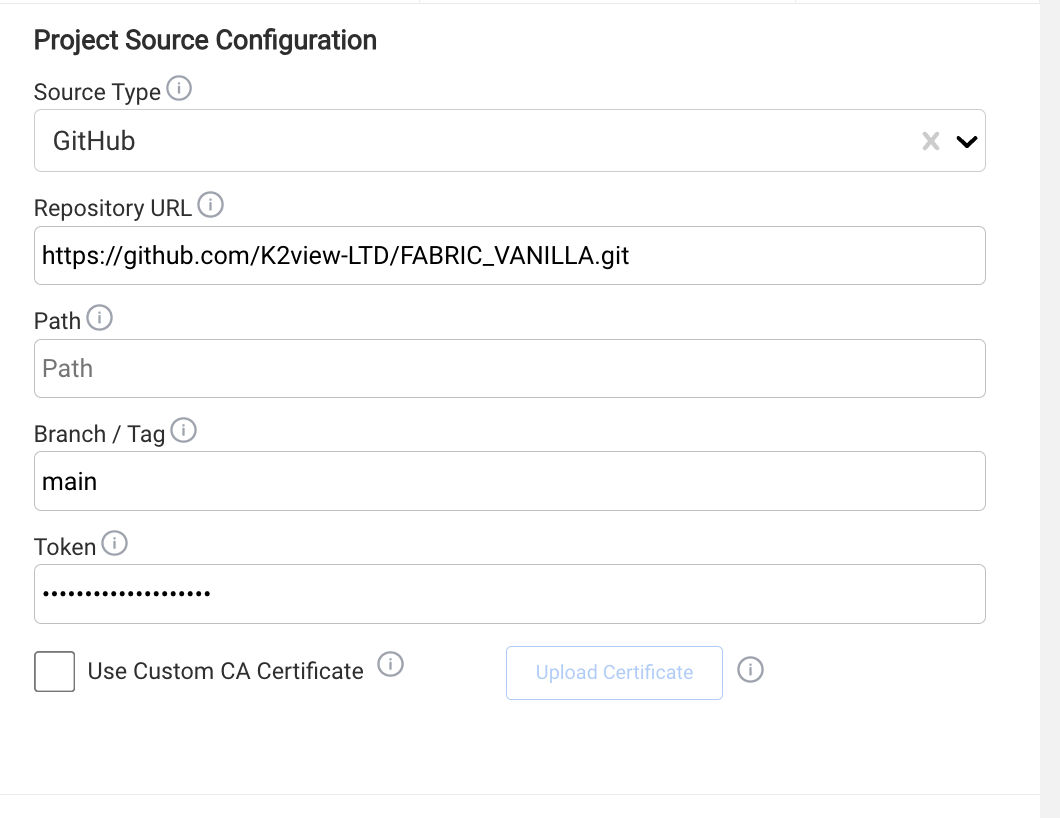
Configure the Git Repository
Enter the Git repository information for the Project.
The repository identifies the source repository containing the K2view project.
The Git token configured here is used by K2cloud to read content from the repository. It is not the Git credential used by individual developers for commits and pushes.
For detailed Git configuration, see Configure Git.
Create the Project
Review the configuration and create the Project.
After creation, the Project appears on the Projects page.
Creating the Project does not create a runtime environment. A runtime environment is provisioned when a Space is created.
The Site where the Space will run is selected as part of Space creation.
After Project Creation
After creating the Project, you can:
- review or update its configuration,
- configure its Space Profiles and Fabric Images,
- manage its Git configuration,
- and create Spaces for the Project.
For information about creating a Space, see Create Your First Space.
Common Issues
If Project creation cannot be completed, verify that:
- all required fields have been provided,
- the Git repository URL is correct,
- the Git token is valid and provides the required repository access,
- the required Space Profiles are available,
- and your user has permission to create Projects.
For Git-specific issues, see Configure Git.
Related Documentation
Create a Project
Overview
Use this procedure to create a Project in K2cloud.
A Project is required before creating a Space. It associates the K2view implementation with its Git repository and defines the Space Profiles available for creating Spaces.
Before You Begin
Before creating the Project, collect:
- the Project name,
- the Space Profile or Profiles to make available,
- the Git repository URL,
- and the Git token used by K2cloud to access the repository.
For initial onboarding, K2view typically recommends the appropriate Space Profiles.
For information about the available profiles, see K2cloud Space Profiles.
Open the Projects Page
- Sign in to the K2cloud Orchestrator at:
https://cloud.k2view.com
- Select Projects from the top-level navigation.
- Select Create Project.
The Create Project form opens.
Enter the Project Name
Enter a name that clearly identifies the implementation.
A Project typically represents an application, program, or implementation rather than an individual runtime environment.
For example:
customer360
claims-platform
billing-runtime
Use a stable name because the Project name appears throughout K2cloud in Project lists, Space associations, and operational views.
Select Space Profiles
Select the Space Profile or Profiles that should be available to the Project.
The selected profiles determine the types of Spaces that can be created for the Project. For example, the same Project may provide:
- a Studio profile for development,
- and a Fabric runtime profile for staging or production.
The Fabric Image associated with each Space Profile determines the Fabric version used by Spaces created with that profile.
For first-time onboarding, use the profiles recommended by K2view or your platform administrator.
Configure the Git Repository
Enter the Git repository information for the Project.
The repository identifies the source repository containing the K2view project.
The Git token configured here is used by K2cloud to read content from the repository. It is not the Git credential used by individual developers for commits and pushes.
For detailed Git configuration, see Configure Git.
Create the Project
Review the configuration and create the Project.
After creation, the Project appears on the Projects page.
Creating the Project does not create a runtime environment. A runtime environment is provisioned when a Space is created.
The Site where the Space will run is selected as part of Space creation.
After Project Creation
After creating the Project, you can:
- review or update its configuration,
- configure its Space Profiles and Fabric Images,
- manage its Git configuration,
- and create Spaces for the Project.
For information about creating a Space, see Create Your First Space.
Common Issues
If Project creation cannot be completed, verify that:
- all required fields have been provided,
- the Git repository URL is correct,
- the Git token is valid and provides the required repository access,
- the required Space Profiles are available,
- and your user has permission to create Projects.
For Git-specific issues, see Configure Git.
Related Documentation