


Catalog Application
Overview
The Catalog application is accessible from the K2view Web Framework by selecting the Catalog from the menu. Upon opening, the application displays the data retrieved from the Neo4j Graph DB and it allows navigating from one level to another through a data model’s graph, expanding and/or collapsing various nodes, searching for nodes, viewing their properties, and more.
The Catalog has a top bar for navigation, which includes the following areas:
The Navigator displays the Catalog tree. It allows to navigate through the Catalog tree and to perform various activities. The Navigator is described in this article, in the following sub-sections:
Navigator's main area, which displays the Catalog tree.
Menu bar, from where various activities can be performed.
Properties tab, which displays the properties of the selected node or relation.
Catalog's deep linking mechanism.
The Monitor displays the Discovery job execution progress. It allows to either re-run the job for a selected data platform or stop the currently running job. For more information about the Discovery job execution monitor click here.
The Settings allows to view and edit the pre-defined Catalog configuration. For more information about the Catalog Settings click here.
Navigator's Main Area
General
The Catalog Navigator's main area enables navigation between different hierarchy levels, by expanding and collapsing various nodes.
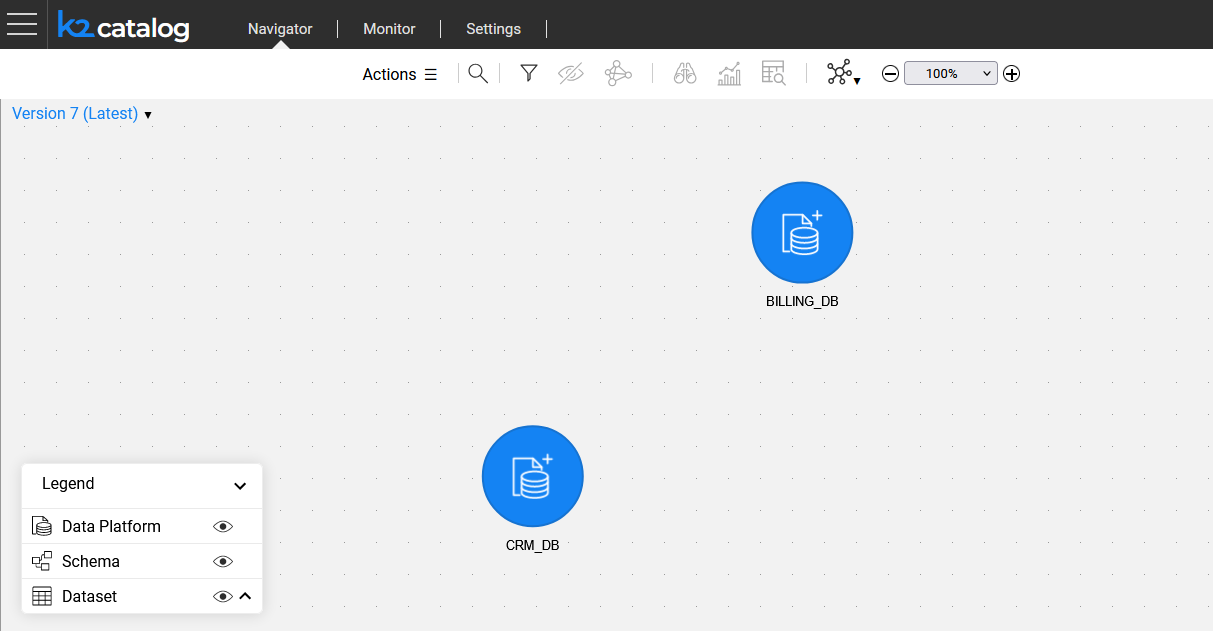
The initial view displays the data platform nodes (the data source interfaces defined in the Fabric project), for which the Discovery process is performed. In case the Discovery process hasn't been executed on any project interface, the main area would be empty.
The Catalog's Legend, which presents the 3 node types with their respective icons, allows to hide or unhide all the elements of the same type.
Catalog's Version
The Navigator displays the latest Catalog version by default. The version number is displayed in the upper-left corner of the main area. By clicking it, you can either:
- View another version, by clicking its number in the drop-down list.
- Compare between 2 versions, by clicking the compare
 icon.
icon.
Click here for more information about the Catalog Versioning.
Data Platform and Schema's Context Menu
A single click on any data platform or schema node opens the context menu:

The context menu allows performing the following actions:
Expand
 or Collapse
  the next level elements.
 - For example, clicking the icon of the data platform expands all of its schemas.
- A double-click on a selected node can either expand or collapse it.
- For example, clicking the
Run Discovery
 on the selected data platform.
Hide
 an element from the window. A hidden element can be unhidden either from the Actions menu (as explained further in this article) or by reloading the Catalog.
Focus
 on the next level elements.
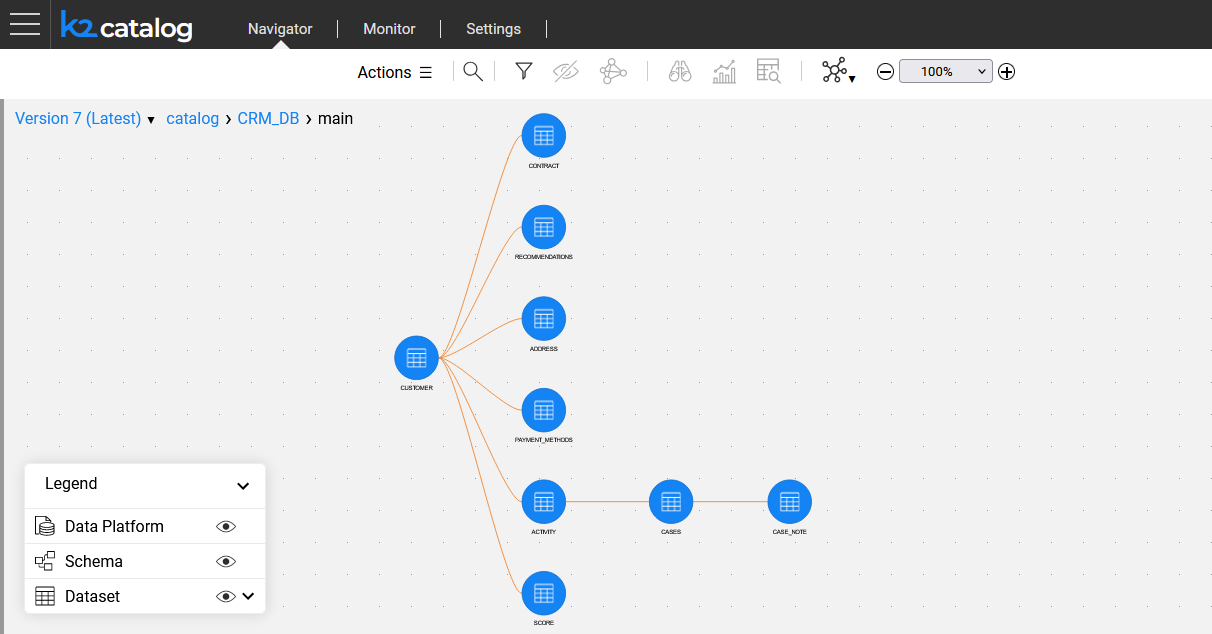
The Focus action differs from the Expand action in a way that it dives into the next hierarchy level, eliminating other nodes from the screen.
For example, when
is clicked on a schema node, the Catalog will only display the dataset nodes of the selected schema. In the Focus view, breadcrumbs are displayed in the upper-left corner of the main area, indicating your path within the Catalog tree. The breadcrumbs are clickable, and they allow to navigate up the tree.
Dataset Context Menu
Clicking on any dataset node opens its context menu, which includes the following actions:
Expand
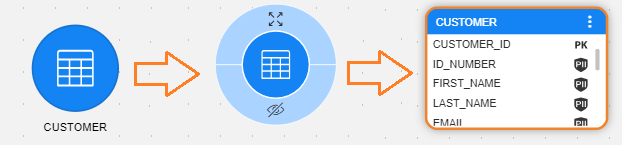
dataset fields:- Click the icon of the selected dataset node to expand its fields. The dataset node then changes its shape from a circle to a rectangle and displays field properties such as PK, FK and PII, where applicable.
- To simultaneously expand all datasets on the screen, click the
 icon on the Catalog's Legend:
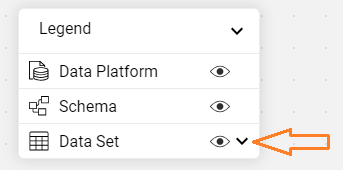
To collapse an expanded dataset, click the three dots in the corner of the node. To do so for all dataset nodes together, click the
 icon in the Catalog's Legend.
- Click the
Hide
an element from the window.
Menu Bar
The menu bar is a toolbar located at the top of the window, featuring the following options:
- Actions menu:
- Build artifacts: Initiate the building of Catalog artifacts. Starting from Fabric V8.4, you can build artifacts for the entire Catalog or a selected data platform. You can track the progress and see when the action is completed. For more information about Catalog artifacts, click here.
- Edit catalog: Switch the Catalog to Edit mode to perform manual overrides. For more information about manual overrides, click here.
- Revert: Revert the entire Catalog or a selected data platform to an earlier version. Available in V8.4. For more information about reverting, click here.
- Delete: Delete the entire Catalog or a selected data platform from the Neo4j Graph DB. Available in V8.4. For more information about deletion, click here.
- Hidden nodes: View the list of nodes, hidden from the Catalog's graph. Clicking a node in this list, unhides it and returns to the Catalog graph.
- Search
 the Catalog. For more information about the Catalog search, click here.
 - Filter
 the Catalog graph by property. When a filter is set, the icon changes its color to orange. For more information about the Catalog filter, click here.
 - Bulk
 indicates whether there are entities in bulk. When the bulk is not empty, the icon changes its color to orange. Available in V8.3. For more information about the Catalog bulk creation, click here.
 - Hide the node from the Catalog graph. Multiple element selection is supported.
- Show only connected
 , used for focusing only on a selected node with its predecessors and successors. When clicked, all other nodes are hidden, and the icon changes its color to orange, indicating it is now in use. Clicking the icon again, unhides the other nodes and returns to the original view.
 - Run Discovery , used for running the Discovery Job on the selected data platform.
- Schema Insights
 , used for analyzing the Catalog's statistics in either a view version mode or a version comparison mode. The insights are currently available only on a schema level.
 - Data Viewer
 , used for connecting to the selected Fabric interface and querying the data directly from the data source.
 - Layout selection
 , used for selecting a Catalog layout. A centered layout is the default, and vertical or horizontal layouts are supported.
 - Zoom in / out, used for adjusting the zoom of the view.
Properties Tab
The Properties tab displays the icon indicating the entity type (field, dataset, schema or data platform) and the entity name.
For the Catalog fields - the Defined By property (e.g. STRING) is displayed next to the field name. This is available starting from Fabric V8.3.1.
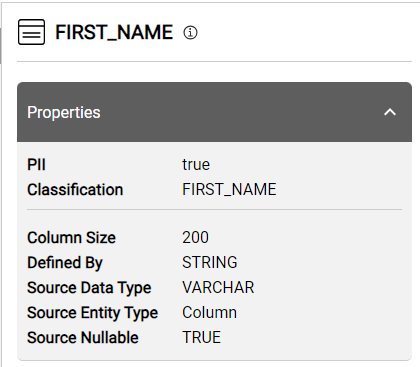
Each entity has different properties - some are created by the Crawler, some - by the plugins.
Clicking the property name or the  icon next to the element's name, opens the More Info pop-up window that provides more details about the property, e.g., the property's Origin, which could be either the Crawler, one of the plugins or manual.
When the selected element is a relation (a link) between 2 objects in the Catalog tree, its properties are displayed in the Properties tab.
Note that in case there are more than one refers to relation between 2 datasets, the Catalog tree displays only one link. However, the Properties tab displays details of all relations.
Deep Linking
When navigating the Catalog tree and clicking a node, the node's path is added to the application URL using the following format:
/app/catalog/<version>/<data platform>/<schema>/<dataset>/<field>
Having a full node path allows sharing it as a direct link to a specific in-app location, thus saving the time and energy trying to locate a particular node.
The <version> should be either the word latest, or alternatively the letter V followed by the version number, for example:
/app/catalog/latest/CRM_DB/public/customer/customer_id
/app/catalog/V2/CRM_DB/public/customer/customer_id
The Catalog can also be accessed from the DB Interface Explorer tab in the Web Studio, as explained here.

Catalog Application
Overview
The Catalog application is accessible from the K2view Web Framework by selecting the Catalog from the menu. Upon opening, the application displays the data retrieved from the Neo4j Graph DB and it allows navigating from one level to another through a data model’s graph, expanding and/or collapsing various nodes, searching for nodes, viewing their properties, and more.
The Catalog has a top bar for navigation, which includes the following areas:
The Navigator displays the Catalog tree. It allows to navigate through the Catalog tree and to perform various activities. The Navigator is described in this article, in the following sub-sections:
Navigator's main area, which displays the Catalog tree.
Menu bar, from where various activities can be performed.
Properties tab, which displays the properties of the selected node or relation.
Catalog's deep linking mechanism.
The Monitor displays the Discovery job execution progress. It allows to either re-run the job for a selected data platform or stop the currently running job. For more information about the Discovery job execution monitor click here.
The Settings allows to view and edit the pre-defined Catalog configuration. For more information about the Catalog Settings click here.
Navigator's Main Area
General
The Catalog Navigator's main area enables navigation between different hierarchy levels, by expanding and collapsing various nodes.
The initial view displays the data platform nodes (the data source interfaces defined in the Fabric project), for which the Discovery process is performed. In case the Discovery process hasn't been executed on any project interface, the main area would be empty.
The Catalog's Legend, which presents the 3 node types with their respective icons, allows to hide or unhide all the elements of the same type.
Catalog's Version
The Navigator displays the latest Catalog version by default. The version number is displayed in the upper-left corner of the main area. By clicking it, you can either:
- View another version, by clicking its number in the drop-down list.
- Compare between 2 versions, by clicking the compare icon.
Click here for more information about the Catalog Versioning.
Data Platform and Schema's Context Menu
A single click on any data platform or schema node opens the context menu:
The context menu allows performing the following actions:
Expand
or Collapse the next level elements. - For example, clicking the icon of the data platform expands all of its schemas.
- A double-click on a selected node can either expand or collapse it.
- For example, clicking the
Run Discovery
on the selected data platform.Hide
an element from the window. A hidden element can be unhidden either from the Actions menu (as explained further in this article) or by reloading the Catalog.Focus
on the next level elements.The Focus action differs from the Expand action in a way that it dives into the next hierarchy level, eliminating other nodes from the screen.
For example, when
is clicked on a schema node, the Catalog will only display the dataset nodes of the selected schema. In the Focus view, breadcrumbs are displayed in the upper-left corner of the main area, indicating your path within the Catalog tree. The breadcrumbs are clickable, and they allow to navigate up the tree.
Dataset Context Menu
Clicking on any dataset node opens its context menu, which includes the following actions:
Expand
dataset fields:- Click the icon of the selected dataset node to expand its fields. The dataset node then changes its shape from a circle to a rectangle and displays field properties such as PK, FK and PII, where applicable.
- To simultaneously expand all datasets on the screen, click the icon on the Catalog's Legend:
To collapse an expanded dataset, click the three dots in the corner of the node. To do so for all dataset nodes together, click the
icon in the Catalog's Legend.
- Click the
Hide
an element from the window.
Menu Bar
The menu bar is a toolbar located at the top of the window, featuring the following options:
- Actions menu:
- Build artifacts: Initiate the building of Catalog artifacts. Starting from Fabric V8.4, you can build artifacts for the entire Catalog or a selected data platform. You can track the progress and see when the action is completed. For more information about Catalog artifacts, click here.
- Edit catalog: Switch the Catalog to Edit mode to perform manual overrides. For more information about manual overrides, click here.
- Revert: Revert the entire Catalog or a selected data platform to an earlier version. Available in V8.4. For more information about reverting, click here.
- Delete: Delete the entire Catalog or a selected data platform from the Neo4j Graph DB. Available in V8.4. For more information about deletion, click here.
- Hidden nodes: View the list of nodes, hidden from the Catalog's graph. Clicking a node in this list, unhides it and returns to the Catalog graph.
- Search the Catalog. For more information about the Catalog search, click here.
- Filter the Catalog graph by property. When a filter is set, the icon changes its color to orange. For more information about the Catalog filter, click here.
- Bulk indicates whether there are entities in bulk. When the bulk is not empty, the icon changes its color to orange. Available in V8.3. For more information about the Catalog bulk creation, click here.
- Hide the node from the Catalog graph. Multiple element selection is supported.
- Show only connected , used for focusing only on a selected node with its predecessors and successors. When clicked, all other nodes are hidden, and the icon changes its color to orange, indicating it is now in use. Clicking the icon again, unhides the other nodes and returns to the original view.
- Run Discovery , used for running the Discovery Job on the selected data platform.
- Schema Insights , used for analyzing the Catalog's statistics in either a view version mode or a version comparison mode. The insights are currently available only on a schema level.
- Data Viewer , used for connecting to the selected Fabric interface and querying the data directly from the data source.
- Layout selection , used for selecting a Catalog layout. A centered layout is the default, and vertical or horizontal layouts are supported.
- Zoom in / out, used for adjusting the zoom of the view.
Properties Tab
The Properties tab displays the icon indicating the entity type (field, dataset, schema or data platform) and the entity name.
For the Catalog fields - the Defined By property (e.g. STRING) is displayed next to the field name. This is available starting from Fabric V8.3.1.
Each entity has different properties - some are created by the Crawler, some - by the plugins.
Clicking the property name or the icon next to the element's name, opens the More Info pop-up window that provides more details about the property, e.g., the property's Origin, which could be either the Crawler, one of the plugins or manual.
When the selected element is a relation (a link) between 2 objects in the Catalog tree, its properties are displayed in the Properties tab.
Note that in case there are more than one refers to relation between 2 datasets, the Catalog tree displays only one link. However, the Properties tab displays details of all relations.
Deep Linking
When navigating the Catalog tree and clicking a node, the node's path is added to the application URL using the following format:
/app/catalog/<version>/<data platform>/<schema>/<dataset>/<field>
Having a full node path allows sharing it as a direct link to a specific in-app location, thus saving the time and energy trying to locate a particular node.
The <version> should be either the word latest, or alternatively the letter V followed by the version number, for example:
/app/catalog/latest/CRM_DB/public/customer/customer_id
/app/catalog/V2/CRM_DB/public/customer/customer_id
The Catalog can also be accessed from the DB Interface Explorer tab in the Web Studio, as explained here.
